 Product Tabs Studio
Global tabs and rules
A global tab is written once and shown wherever its rule says. Products → Product Tabs holds the library; each tab decides for itself which products it appears on.
Creating one
- Go to Products → Product Tabs and press Add New Tab.
- The post title is the tab label the customer sees. Write the content in the editor below it.
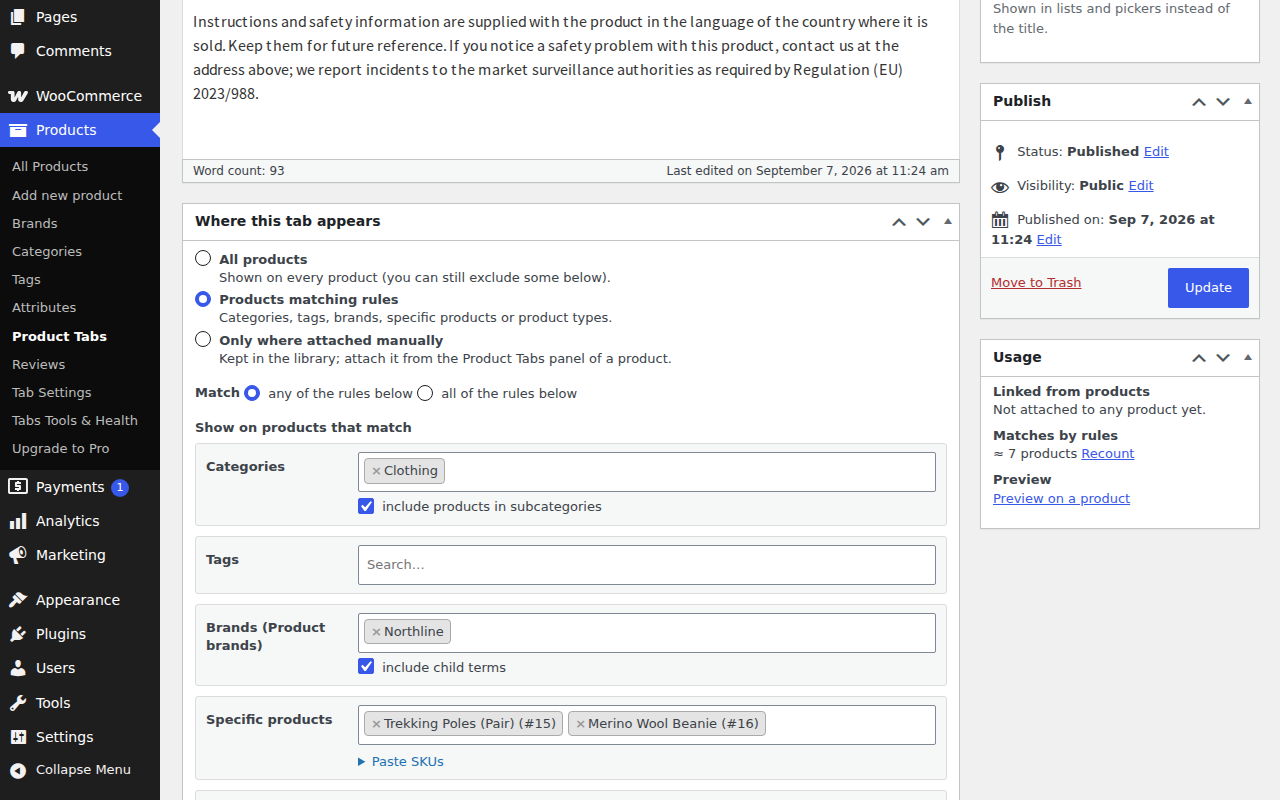
- In Where this tab appears, choose one of the three modes and, for rules, fill in the rule fields.
- Publish. The Usage box counts the products the tab is attached to and the products its rules currently match.
The three modes
- All products
- Shown on every product. You can still list exceptions in the exclude section.
- Products matching rules
- Shown where the rules match, evaluated live on every product page.
- Only where attached manually
- Kept in the library and shown only on products where you added it from the Product Tabs panel.
The rules
Rules are built from these types, in an include list and an exclude list:
- Categories, with a per-rule checkbox to include products in subcategories.
- Tags.
- Brands, one field per brand taxonomy registered on the site. WooCommerce Brands (
product_brand), Perfect Brands (pwb-brand) and YITH Brands are recognised out of the box; another brand plugin can be added with theptstudio_brand_taxonomiesfilter. Brand fields have a child-terms checkbox as well. - Specific products, chosen from a search field or pasted as a list of SKUs. SKUs that match nothing are reported back to you rather than dropped in silence.
- Product type: simple, variable, grouped, external.
Match decides how the include list is read: any shows the tab when at least one rule matches, all only when every filled rule matches. The exclude list always wins over the include list.
Count matching products runs the rules and tells you how many products match right now, with a preview of the first twenty and links to them. Use it before publishing rather than checking product pages one by one.
Rules that need attributes, price, stock, shipping class, SKU patterns, user roles or a schedule are not in the free plugin. They are part of Product Tabs Studio Pro.
Tab settings
The sidebar box next to the editor holds the rest:
- Key: the anchor and CSS suffix, checked for availability as you type. A warning appears if you use
description,additional_informationorreviews, because those belong to the WooCommerce tabs — see key collisions. - Priority: leave it blank for automatic placement, or give a number to pin the tab to a fixed position.
- Heading: whether the tab title is printed above the panel content.
- Content mode: which rendering pipeline this tab uses, if it should differ from the site setting.
- Admin label: an internal name shown in lists and pickers instead of the title. Useful when several tabs are called "Shipping".
Changing a global tab on one product
Open the product, find the tab in the Product Tabs panel — either the row you attached, or the entry in the read-only "also shown by rules" list — and either hide it on that product or tick Customize content for this product. Customising stores a copy of the content on the product; the global tab is untouched and every other product keeps using it.
Unticking Customize does not delete the copy. It stays on the product as a snapshot, so ticking the box again brings your text back.
The tab list
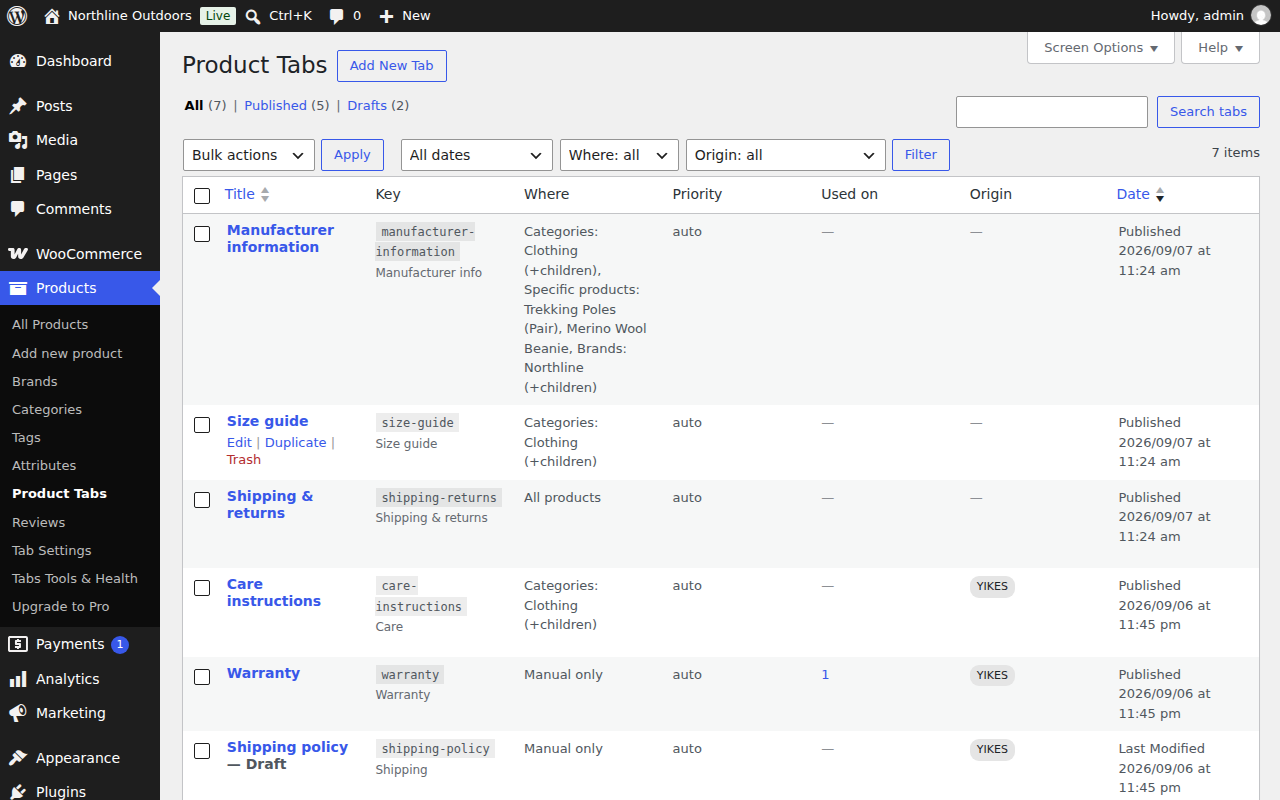
The list can be filtered by mode and by origin — the origin badge marks tabs that came from another plugin's data through the importer. Used on links to the products that attach the tab directly.
Trashing a tab does not touch products. Rows that pointed at it keep the snapshot of its content and show a "Global tab deleted" badge until you restore the tab or convert the row to a local tab.