 Product Tabs Studio
Tab order and the default WooCommerce tabs
WooCommerce prints Description, Additional information and Reviews with the priorities 10, 20 and 30. Product Tabs Studio leaves those numbers alone unless you change them yourself.
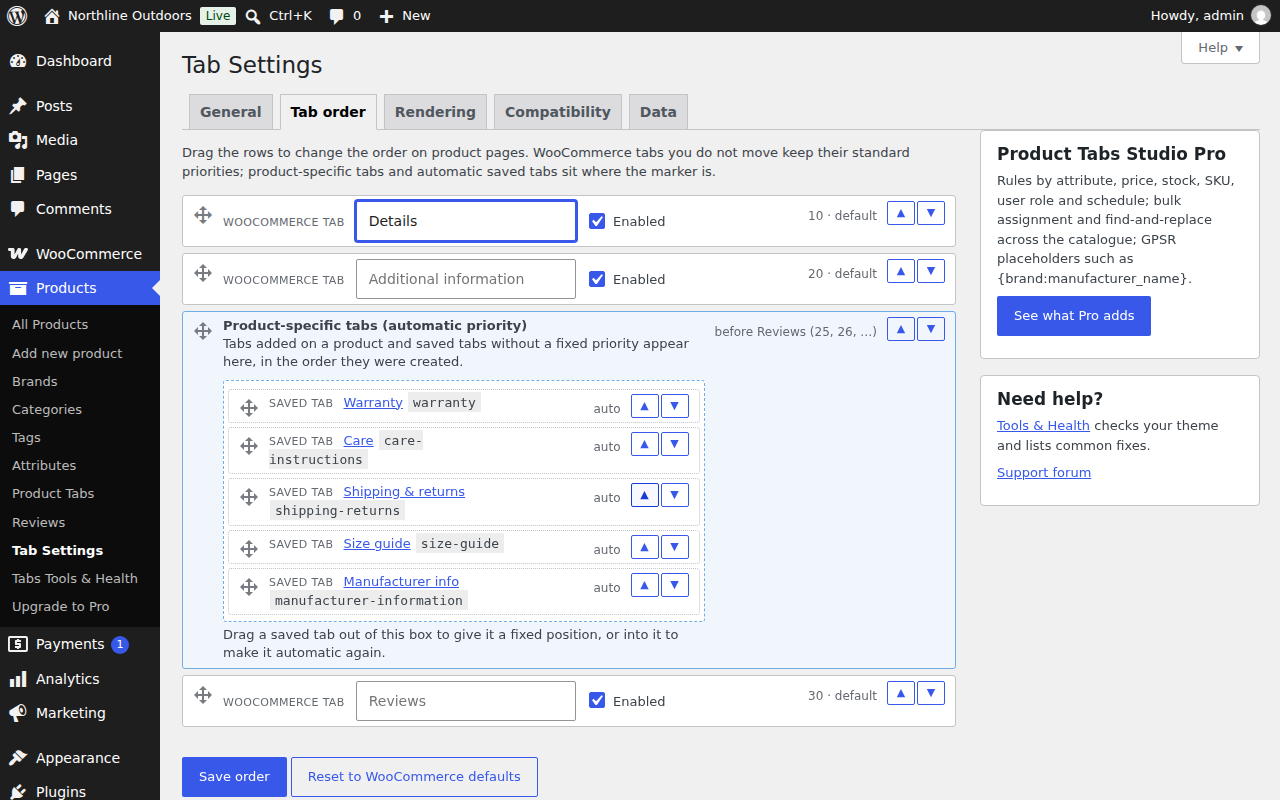
Where custom tabs go by default
A tab with no explicit priority is placed automatically. The default slot is before Reviews: custom tabs get 25, 26, 27 and so on, and if the Reviews tab still carries its stock priority it is pushed after them, so Reviews stays last however many tabs you add.
The slot can be moved on the Tab order screen by dragging the marker labelled "Product-specific tabs (automatic priority)". The four positions are before all tabs, after the Description, before Reviews, and after everything else.
A tab with a number in its priority field ignores the slot and sits at that number. A priority set on a product's row wins over the priority of the global tab it points at.
Using the Tab order screen
Open Tab Settings → Tab order. The list holds one row per WooCommerce default tab, the marker for automatically placed tabs, and a row for each published global tab.
- Drag a row, or use its up and down buttons, to move it.
- Type in a default tab's text field to rename it. Leave it empty to keep the WooCommerce label.
- Untick Enabled on a default tab to hide it.
- Drag a global tab out of the automatic box to pin it to a fixed position, or back into the box to make it automatic again.
- Reset to WooCommerce defaults clears every stored title, priority and enabled flag for the three default tabs and puts the slot back to before Reviews.
A default tab you never move stores nothing at all: the plugin passes WooCommerce's own entry through unchanged. This is why the screen marks untouched rows as "default" next to their priority.
A default tab that is not present for other reasons — Reviews when comments are closed on the product, for example — is simply absent, and the screen's settings for it have no effect.
Key collisions
Every tab on a product page has a key, and only one tab can hold a given key. Two policies are available under Tab Settings → Compatibility:
- Rename
- The default on a fresh install. A tab whose key is already taken gets a numeric suffix, so it can never take over a WooCommerce tab or another plugin's tab by accident. A notice tells you when a key was renamed.
- Replace
- Set automatically when data from Custom Product Tabs for WooCommerce (YIKES) is detected, because that plugin worked this way: a tab keyed
descriptiontakes the place of WooCommerce's Description tab. A key belonging to a third plugin's tab is still renamed rather than overwritten.
Replacing a default tab is a legitimate technique — it is how a shop puts its own content where the Description tab was — but renaming or hiding the default tab from the Tab order screen is usually clearer.
When the theme has the last word
WooCommerce sorts the tabs at the very end of the filter chain, and a theme or another plugin can hook in after this plugin does and reorder or remove tabs. That is by design and Product Tabs Studio does not fight it. The system report on the Tools & Health screen lists every callback attached to the product tabs filter, with its priority and the file it lives in, which is usually enough to identify what is moving your tabs.