 Product Tabs Studio
Moving from Custom Product Tabs for WooCommerce (YIKES)
This page is for shops running Custom Product Tabs for WooCommerce, published by YIKES and later maintained by Code Parrots. It describes what happens to the tab data you already have, what Product Tabs Studio does and does not touch, and how to go back if you change your mind.
Where that plugin stands today
The current release on WordPress.org is 1.8.6, dated 12 April 2025. Its plugin header declares Tested up to WordPress 6.7 and WC tested up to WooCommerce 9.8.
None of that makes the plugin stop working from one day to the next. WordPress does not disable plugins that go quiet, and a shop can run 1.8.6 for a long time without noticing anything. It does mean nobody is currently shipping fixes for it.
The authors built something a lot of shops depend on, and this page is not an argument about their work. It is a description of what a successor plugin has to do to take over that data safely.
The four questions people are actually asking
These come up again and again in the plugin's support forum. Here are straight answers, each one checked on 8 September 2026.
Is Custom Product Tabs for WooCommerce abandoned?
There has been no release since 1.8.6 on 12 April 2025, and the product page on the vendor's site no longer leads anywhere useful. Whether you call that abandoned or dormant, the practical position is the same: nobody is shipping fixes. The plugin itself keeps working.
Is it a security risk to keep using it?
Not because of the vulnerability people usually link to. That one is CVE-2024-11465, a PHP object injection reachable by a Shop Manager or above, and it affects versions up to and including 1.8.5. The authors fixed it in 1.8.6. If you are on 1.8.6 you are not exposed to it, and anyone telling you otherwise is quoting an out-of-date page.
The real risk of an unmaintained plugin is duller and slower: no compatibility fixes as WordPress and WooCommerce move on, and no fix for whatever is found next.
I want to buy the Pro version and the link goes nowhere. Can I still buy it?
No. The upgrade link inside the plugin points at yikesplugins.com, which does not respond at all: it returns an SSL error, checked again on 8 September 2026. The vendor's other domain is still online but its page for the Pro product now shows a blog listing rather than anything you can buy. If you were trying to pay and could not, that is why, and it is not something you are doing wrong. There is a separate page on what that add-on sold and where each of its features stands today, including the one we do not do.
I need tabs that appear by category. What are the alternatives?
Product Tabs Studio does that in the free plugin, not in a paid tier: a global tab shown on a category and its subcategories, or by tag, brand, product type or a specific list of products, with include and exclude and match-any or match-all. It also reads your existing Custom Product Tabs data natively, so your current tabs keep working with the same keys while you decide.
It is not the only option and this page is written by the people who make it, so treat it accordingly. What is checkable is the part above about your data, and it is what matters most before you touch anything.
What staying on it means
Three properties of the code matter when you are deciding what to do. All three are visible in the released 1.8.6 source.
- A product save rewrites the whole tab list from the submitted form. The save routine reads a hidden field holding the number of tabs, rebuilds the list from the posted fields and writes it with
update_post_metaunconditionally. If those fields do not arrive — the usual cause is PHP'smax_input_varslimit truncating a large product form — the meta is overwritten with an empty list, and the tabs are gone from the storefront. This is the failure that most "my product tabs disappeared" reports come down to. - Deleting the plugin deletes the tab data. Its
uninstall.phpremoves everyyikes_woo_products_tabspost meta row and the saved-tab options. Deactivating the plugin is harmless and leaves everything in the database. Choosing Delete in the plugins screen is not. - Content is unslashed twice on save. The save routine calls
stripslashes()and then hands the value toupdate_post_meta(), which unslashes again. Backslashes inside tab content — JSON in a shortcode attribute, an escape sequence in inline script — are lost a little more on each save.
Beyond the code: an unmaintained plugin receives no compatibility updates as WordPress and WooCommerce change, and no security fixes.
The single most important thing on this page: if you decide to stop using that plugin, deactivate it. Do not press Delete until you have either converted the tabs to native storage or exported them, because its uninstall routine removes its own product meta.
What Product Tabs Studio does with your data
It reads it, immediately, without changing it
Product Tabs Studio ships a permanent read-only adapter for that data format. For any product that has no tabs of its own in the new plugin, it reads yikes_woo_products_tabs and renders those tabs directly. There is no import step you must complete before the storefront looks right.
The adapter reproduces the original behaviour rather than approximating it:
- Order. Custom tabs are given priorities 25, 26, 27 and so on, and the Reviews tab is pushed after them — the same arithmetic the old plugin used, so the tab strip does not reshuffle.
- Keys. Each tab's stored
idbecomes the tab key verbatim, so existing#tab-…anchors and links keep working. - Markup. When YIKES data is detected the plugin sets its legacy CSS mode, which prints exactly the old heading markup:
<h2 class="yikes-custom-woo-tab-title yikes-custom-woo-tab-title-{key}">, with no extra wrapper. Theme CSS written against those classes keeps applying. - Key collisions. The collision policy is set to replace, which reproduces the old rule that a tab named "Description" takes over WooCommerce's Description tab. A key owned by some other plugin's tab is still renamed rather than overwritten.
- Content pipeline. The old
yikes_cpt_use_the_contentoption is read once and translated into the matching rendering mode. - Old filters. Legacy hook mode re-fires
yikes_woo_filter_all_product_tabs,yikes_woocommerce_custom_repeatable_product_tabs_headingandyikes_woocommerce_custom_repeatable_product_tabs_content, so theme snippets written against them still run.
It copies your saved tabs into a library
The old plugin's "saved tabs" live in a site option and are copied into each product that uses them. On first run, Product Tabs Studio creates one global tab in its own library for each saved tab, keeping the title, content, slug and admin label, and recording where it came from. Nothing is written to any product during this step, and the original option is left exactly as it was.
It converts a product only when you save that product
A product moves to the new native storage the first time you save it from the Product Tabs panel. Until then it keeps being read from the old meta. When a product does convert, the plugin can keep a copy in the old format in sync — that setting is switched on automatically when legacy data is found — so the old plugin would still find its data if you reactivated it.
If the old plugin is still active
When both plugins are active, Product Tabs Studio removes the old plugin's front-end and admin callbacks so that only one of them renders tabs and its product panel cannot overwrite tab data. An admin notice and a Site Health check both report this state. Deactivating the old plugin is still the cleaner arrangement.
For the other two plugins with adapters (Barn2 and WB), the opposite rule applies: while their plugin is active, Product Tabs Studio renders nothing from their data, to avoid duplicate tabs.
Step by step
- Take a database backup. Standard practice before any plugin change on a live shop. If your host has staging, do the whole sequence there first.
- Install Product Tabs Studio from Plugins → Add New and activate it. WooCommerce 7.0 or newer must be active.
- Deactivate Custom Product Tabs for WooCommerce. Do not delete it. Deactivating changes nothing in the database.
- Look at the storefront. Open three or four products that have tabs — ideally one with several tabs, one that uses a saved tab, and one whose tab overrides a default WooCommerce tab. The tab strip should be unchanged.
- Check the admin. Products → Product Tabs now lists your former saved tabs, each with an origin badge. Open a product: the Product Tabs panel shows a badge saying the tabs are being read from the legacy data and will be converted when the product is saved.
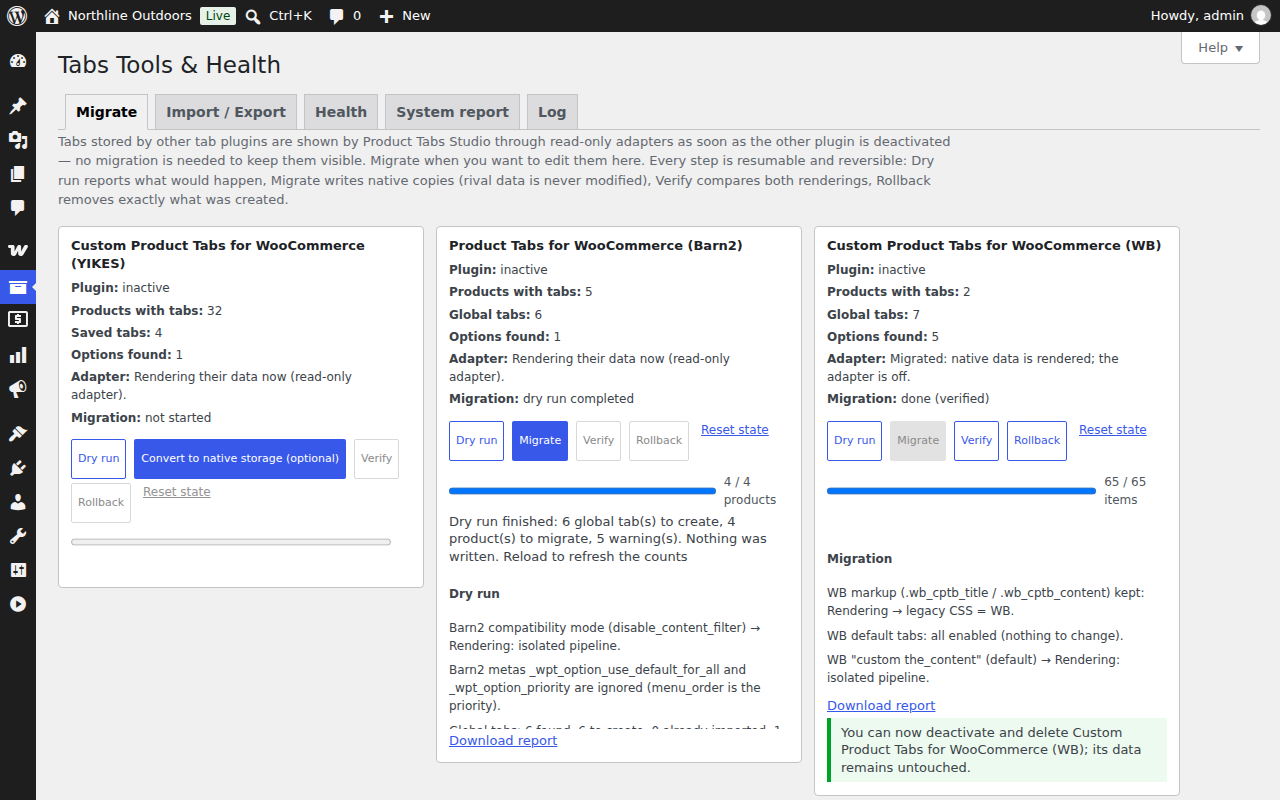
- Open Products → Tabs Tools & Health. The Migrate tab shows a card for the old plugin with the number of products carrying tabs, the number of saved tabs, and the adapter's current state. The Health tab checks whether your theme overrides the WooCommerce tabs template and whether the tabs are printed at all.
- Decide about conversion (next section). It is optional.
- Delete the old plugin only after converting or exporting. See the warning above.
Converting to native storage (optional)
Reading through the adapter is a supported, permanent state. Converting is worth doing when you want the tabs to behave like native data everywhere: bulk work in the new plugin, WPML or Polylang translation of tab fields, and JSON export and import between environments.
The conversion is labelled Convert to native storage (optional) on the Migrate card and runs in batches of 50 products, resumable if the page is closed. For each product it writes the adapter's output into the native format and records where it came from. The old meta is not deleted, and the mirror keeps it current afterwards.
Before that, Dry run reports what would happen without writing anything: how many products and tabs, plus warnings for tab keys that collide with WooCommerce defaults, duplicate keys on one product, empty titles, and content that sanitising would alter. Verify then renders every migrated product both ways — through the adapter and from native storage — and compares the ordered keys, the titles and a checksum of each rendered panel, listing any product where they differ.
Going back
Reversibility is a property of how the plugin is built, not a feature you have to enable:
- The adapter only reads. It never writes to
yikes_woo_products_tabsor to the saved-tab options. - Migration only adds: new global tabs and new native product meta. The old keys are left untouched.
- The mirror setting keeps a copy of each converted product's tabs in the old format, so the old plugin finds its data if you reactivate it.
- Rollback on the Migrate card deletes exactly what the migration created: the global tabs it made, and the native tab data of products that have not been edited by hand since. Products you did edit afterwards are kept and listed by name, so nothing is removed behind your back. The adapter is switched back on.
One asymmetry to know about: edits you make to a converted saved tab in the new editor are not written back into the old plugin's saved-tab option. If you roll back after editing global tabs, those tabs revert to their content at the time of conversion.
Questions
Do I have to migrate at all?
No. Activating Product Tabs Studio and deactivating the old plugin is enough to keep every tab visible. The import exists so you can edit that content in the new plugin and use native tooling on it.
Will my #tab-… links still work?
Yes. Tab keys are read verbatim from the stored data rather than recomputed, so anchors in your descriptions, emails and documentation still point at the same panels.
Will my theme's custom CSS still apply?
Yes, when legacy CSS mode is set to YIKES, which happens automatically when legacy data is found. The heading markup is byte-for-byte the old markup, and no extra wrapper element is added around the panel content. You can switch the mode off later under Tab Settings → Compatibility if you restyle.
Is anything rendered differently?
One thing, deliberately. The old plugin ran shortcodes over tab content twice, which meant an escaped shortcode written as [[example]] was executed on the second pass. Product Tabs Studio runs exactly one shortcode pass, so [[example]] now stays escaped, which is the documented WordPress behaviour. If a tab depended on the double pass, its output will change.
Two of my tabs on the same product have the same key. What happens?
The same thing as before: on the storefront the later one wins. The difference is that the product panel now tells you about it so you can rename one.
My tab is called "Description" and replaces the WooCommerce one. Does that survive?
Yes. When legacy data is detected the key collision policy is set to replace, which reproduces that behaviour. On a fresh install without legacy data the policy is rename instead, so a new tab never silently takes over a WooCommerce tab.
Some of my tab data is stored as a serialized string instead of an array. Is that a problem?
No. That shape comes from the WooCommerce CSV importer and the plugin accepts both. Reading is done through a decoder that refuses object and class tokens outright, and the Tools screen offers a batch that rewrites those rows in the array form, leaving the content unchanged.
Can I keep both plugins active?
It works — Product Tabs Studio disables the other plugin's rendering and admin panel so tabs are not printed twice and the old panel cannot overwrite data — but there is no benefit to it. Deactivate the old plugin once you have checked the storefront.
What about my tabs after I delete the old plugin?
If you converted to native storage first, the tabs live in the new plugin's own meta and nothing is lost. If you did not, its uninstall routine removes the meta the adapter was reading, and the tabs go with it. Convert or export first.
Does the new plugin send my data anywhere?
No. See Privacy for the one optional opt-in shown on activation and exactly what it covers.
Where do I ask something that is not here?
The support page has an email address, and we answer it ourselves.
Do I have to pay for anything to move my tabs across?
No. Reading the old data, migrating it, verifying it and rolling it back are all in the free plugin, and they always will be. There is a paid add-on for shops that manage tabs across a large catalogue, described below, and nothing on this page needs it.
If your catalogue is large
Everything above is free. Product Tabs Studio Pro is a paid add-on for shops where tabs are a catalogue-wide job rather than a per-product one. It adds rules by attribute, price, stock, shipping class, SKU, user role and schedule; bulk assignment and find-and-replace across the whole catalogue, with a preview before it runs and an undo after; and per-brand placeholders, so a manufacturer block filled in once appears on every product of that brand.
It costs 89 EUR a year for one site, 189 EUR for five and 349 EUR for twenty-five, plus VAT. It needs the free plugin, which stays installed. Payment, invoicing and billing questions are handled by Freemius as reseller and seller of record.